Mastering Architectural Details with Procreate Roof Texture Brushes X 15
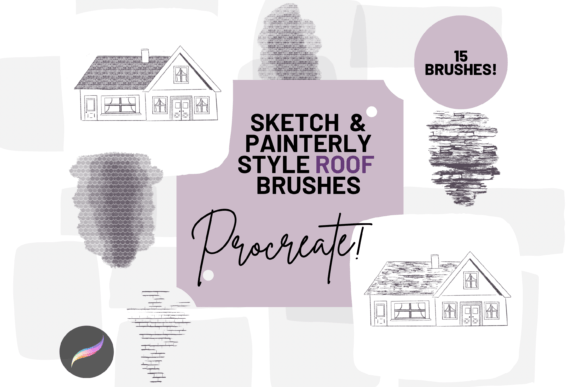
Digital illustration has evolved from simple line work to complex, textured masterpieces that mimic traditional media with startling accuracy. For artists focusing on architectural sketches, urban landscapes, or concept art, rendering roofs can often become a tedious bottleneck. This is where specialized tools like the Procreate Roof Texture Brushes X 15 pack become indispensable. These hand-created digital brushes are designed specifically to streamline the process of creating beautiful sketchy and painterly pieces, allowing you to mix and match textures across various projects without losing artistic integrity.
However, owning a high-quality brush set is only half the battle. Many creators purchase premium assets but fail to integrate them effectively into their workflow, leading to repetitive patterns or unnatural-looking results. Understanding the nuances of these tools—specifically how they interact with opacity, blend modes, and canvas resolution—is crucial for achieving professional-grade output.
The Trap of One-Click Solutions
A common misunderstanding among beginners is assuming that texture brushes are "magic wands" that require zero artistic input. While the Procreate Roof Texture Brushes X 15 are buildable and textured to provide quick and easy sketch-style roof effects, relying on them without adjustment leads to flat, digital-looking artwork. The included slates, slats, tiles, and tin textures are starting points, not final products.
If you simply stamp the brush repeatedly across a roofline, the result will look robotic and tiled. Human eyes are incredibly adept at spotting repetition. To avoid this, you must embrace variability. Use the brush resize tool in Procreate frequently. Altering the size of the brush stroke between applications breaks up the pattern and mimics the irregular wear and tear found in real-world architecture. Additionally, rotating your canvas or adjusting the angle of your Apple Pencil can introduce subtle variations in the stroke direction, enhancing the hand-drawn aesthetic.
Overlooking Technical Requirements
Before diving into creation, it is vital to address the technical prerequisites. A frequent source of frustration for new buyers is attempting to use these files on incompatible devices. These files are digital brushes that will only work within the Procreate App. They are not compatible with Photoshop, Clip Studio Paint, or desktop versions of drawing software. Furthermore, to utilize them effectively, you need an Apple Pencil and the Procreate App installed on an iPad Pro or compatible iPad model. Trying to force these assets onto unsupported hardware results in wasted time and money.
Another overlooked detail is the installation process. Unlike standard app downloads, brush packs require manual handling. You will need a platform to download the files to, such as iCloud, and a program capable of unzipping the files, like iZip. Once unzipped, the files must be imported into Procreate within a named folder. Skipping the organization step might seem harmless initially, but as your library grows, locating specific tools becomes a significant efficiency drain. Taking two minutes to name your folder "Roof Textures" saves hours of searching later.
Misusing Opacity and Blend Modes
The true power of the Procreate Roof Texture Brushes X 15 lies in their adjustability. Many users stick to default settings, missing out on the depth these brushes can offer. The strength of the blend ink charge can be altered significantly by using the opacity slider and experimenting with different blend modes. For instance, setting a slate tile brush to a lower opacity allows you to layer strokes, building up density gradually rather than applying a harsh, solid block of color.
Consider the difference between a sunny terrace and a shadowed attic. By lowering the opacity and switching to a multiply blend mode, you can darken existing textures without covering them completely, creating realistic shadows and depth. Conversely, using screen or add modes with lighter colors can simulate sunlight hitting tin roofs. Ignoring these controls limits your palette to flat colors, stripping your architectural drawings of the atmospheric quality that makes them engaging.
Neglecting Scale and Perspective
Architectural accuracy depends heavily on scale. A mistake often seen in digital sketches is using the same brush size for a distant cottage and a foreground skyscraper. The Procreate Roof Texture Brushes X 15 include various elements like slats and tiles, which have distinct physical dimensions. Using a large tile texture on a small shed looks disproportionate and breaks the viewer's immersion.
To correct this, always consider your perspective grid. Before applying any texture, determine the distance of the object from the viewer. Use the move and resize tool to adjust the brush stamp size accordingly. Distant roofs should have finer, less detailed textures, while foreground elements benefit from larger, more defined strokes. This attention to scale ensures that your composition remains cohesive and believable.
Choosing the Right Brush for the Material
Not all roofs are created equal, and neither are the brushes in this pack. The set includes slates, slats, tiles, tin, and more. A common error is using a clay tile brush for a metal roof. While both are roofing materials, their light reflection and structural patterns differ vastly. Tin roofs reflect light sharply and have long, continuous seams, whereas clay tiles absorb light and have overlapping, curved shapes.
Take time to review the listing pictures for brushes included to understand the specific character of each tool. Test each brush on a separate layer to see how it behaves. Does it create hard edges or soft blends? Is it suitable for rough sketches or polished illustrations? Matching the brush personality to the material you are depicting enhances the realism of your work. For example, use the slat brushes for wooden structures and the tin brushes for industrial buildings. This semantic alignment between tool and subject matter elevates the professionalism of your portfolio.
Final Thoughts on Workflow Integration
Integrating new tools into your creative process requires patience and experimentation. The Procreate Roof Texture Brushes X 15 offer a robust solution for artists looking to speed up their architectural detailing without sacrificing quality. By avoiding the pitfalls of repetitive stamping, ignoring technical requirements, and neglecting opacity controls, you can unlock the full potential of these assets.
Remember, digital art is iterative. Do not be afraid to delete layers, adjust sizes, and try different blend modes. The goal is not just to fill space with texture but to tell a story about the building’s age, material, and environment. With practice, these brushes will become an extension of your artistic voice, allowing you to create stunning, painterly pieces that captivate your audience. Always ensure your iPad is updated and your files are backed up via iCloud to protect your creative investments. Happy drawing.