Gouache Brushes for Procreate: Achieving Authentic Texture in Digital Art
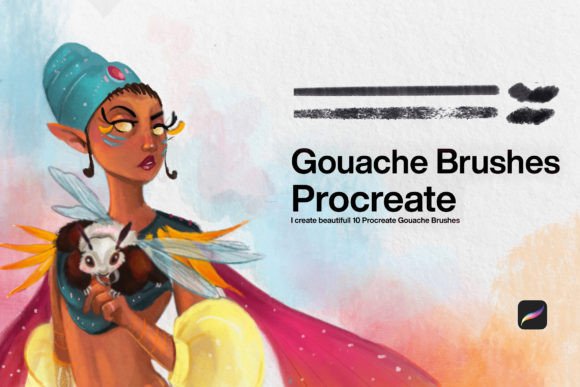
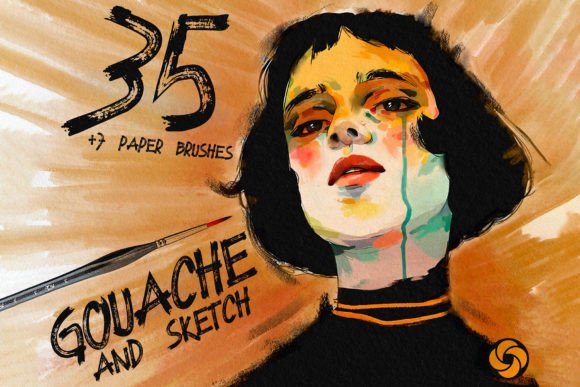
Digital painting has evolved significantly, yet many artists still crave the tactile resistance and opaque richness of traditional media. This is where Gouache Brushes for Procreate bridge the gap between physical intuition and digital convenience. Gouache, known for its matte finish and vibrant pigments, behaves differently than watercolor or oil. It dries quickly, allows for reworking, and offers a unique flatness that can be difficult to replicate on a glass screen. The Introducing the Gouache Brush Set for Procreate addresses these specific challenges by mimicking the texture and behavior of traditional gouache paint with high-fidelity precision.
For creators ranging from hobbyists to professional illustrators, understanding how to leverage these tools correctly is essential. Many users download premium brush packs only to feel disappointed because their results look "digital" rather than organic. This disconnect usually stems not from the quality of the brushes, but from misunderstandings about how digital gouache interacts with canvas textures and layer settings. By recognizing common pitfalls, you can transform your workflow and achieve genuinely convincing artwork.
The Misconception of Instant Realism
A frequent mistake beginners make is assuming that installing a high-quality brush set automatically guarantees a traditional look. While the Gouache Brushes for Procreate are engineered to replicate the drag, bleed, and opacity of real paint, they require the right environment to shine. Using them on a default, smooth white canvas often results in flat, sterile images that lack the depth of physical paper.
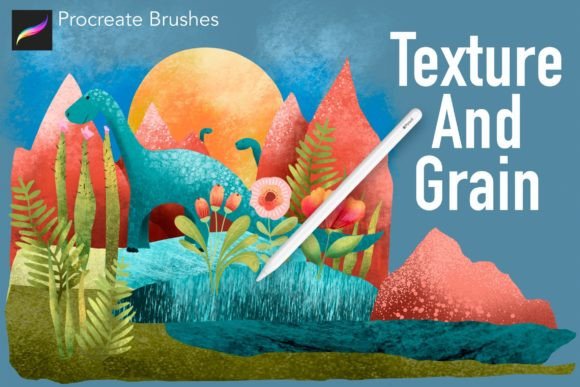
To avoid this, you must prioritize the substrate. The included paper texture brushes are not merely decorative overlays; they are fundamental to the painting experience. Textures such as watercolor paper, sketch paper, and rough paper interact with the brush strokes to break up uniform color fields. This interaction creates micro-variations in pigment density, mimicking how real paint settles into the tooth of physical paper. Ignoring these texture layers removes the tactile quality that makes digital gouache compelling. Always begin your piece by selecting a paper texture that complements the mood of your illustration. A rough paper texture might suit a bold, expressive landscape, while a smooth sketch paper could be better for detailed character work.
Overlooking Brush Variety and Function
Another common oversight is sticking to a single brush type throughout the entire painting process. The Gouache Brush Set for Procreate includes a diverse array of tools, including round, flat, and fan brushes. Each serves a distinct purpose in building a realistic composition.
- Round brushes are ideal for general shaping and detailing, offering control similar to traditional sable brushes.
- Flat brushes excel at creating sharp edges, blocking in large areas of color, and achieving the characteristic flat washes of gouache.
- Fan brushes are perfect for blending soft transitions, creating foliage, or adding subtle textural noise without heavy-handed strokes.
Artists who rely solely on one brush type often struggle with monotony in their stroke work. By rotating through these tools, you introduce visual variety that keeps the viewer engaged. For instance, use a flat brush to lay down a solid background, then switch to a round brush for organic shapes, and finish with a fan brush to soften harsh lines. This approach mirrors the traditional workflow and prevents the "over-polished" look that plagues many digital paintings.
Neglecting Layer Management and Opacity
Gouache is an opaque medium, but it is not impervious. A critical error in digital replication is ignoring the interplay between opacity and layer blending modes. Traditional gouache allows you to paint light over dark, a feature that distinguishes it from watercolor. However, if you keep your brush opacity at 100% constantly, you lose the ability to create depth through glazing or subtle adjustments.
Experiment with lowering the opacity of your Gouache Brushes for Procreate to build up color gradually. This technique allows underlying textures and colors to peek through, creating a sense of luminosity and complexity. Additionally, be mindful of your layer stack. Unlike physical paint, digital layers do not mix physically unless you merge them or use specific blending modes. To achieve a more authentic feel, consider working on fewer layers and merging them periodically to simulate the mixing of wet paint on a palette or canvas. This practice forces you to commit to decisions, much like traditional media, and reduces the temptation to endlessly tweak individual elements.
Installation and Technical Setup Errors
Even the best tools are useless if they are not installed correctly. A surprising number of users encounter issues simply because they do not follow the proper installation protocol. After purchasing the set, you will receive a download link. It is crucial to open this file directly on your iPad via Procreate. The downloaded brushset is designed to automatically install and become available for use once opened in the app.
If you attempt to import the file through iTunes or cloud storage without opening it in Procreate first, you may face compatibility errors or missing presets. If you encounter any problems during this process, do not hesitate to reach out for support. Ensuring a smooth technical setup allows you to focus entirely on creativity rather than troubleshooting. Furthermore, verify that your iPad’s pressure sensitivity settings are calibrated to your Apple Pencil. Incorrect pressure curves can make the brushes feel unresponsive or too sensitive, undermining the realistic behavior the set is designed to provide.
Making the Right Choice for Your Workflow
Before investing time in mastering this set, evaluate your current artistic goals. Are you looking to create quick sketches, or do you aim for finished, gallery-quality illustrations? The Introducing the Gouache Brush Set for Procreate is versatile enough for both, but it excels in projects where texture and materiality are central to the aesthetic. If your style leans toward clean vector art or hyper-realistic rendering, these brushes might require significant adjustment to fit your workflow. However, for those seeking warmth, imperfection, and hand-crafted charm, this collection offers a robust solution.
Check the compatibility of your device and ensure you have sufficient storage space for high-resolution textures. Also, consider watching tutorial videos that demonstrate the brushes in action. Seeing how experienced artists utilize the flat and fan brushes can provide immediate insights into techniques you might not discover through trial and error alone.
Ultimately, the value of Gouache Brushes for Procreate lies in their ability to bring the soul of traditional painting into the digital realm. By avoiding common mistakes—such as neglecting paper textures, limiting brush variety, and mismanaging opacity—you can unlock the full potential of this toolset. The result is artwork that feels tangible, authentic, and deeply satisfying to create. Whether you are a freelancer delivering client work or a hobbyist exploring new mediums, these brushes offer a pathway to richer, more expressive digital art.